Welcome to the Brewtrip Destination Builder tutorial! Whether you’re a first‑time user or looking to fine‑tune your itineraries, this guide walks you through every step.
Step 1: Log In and Access the Builder
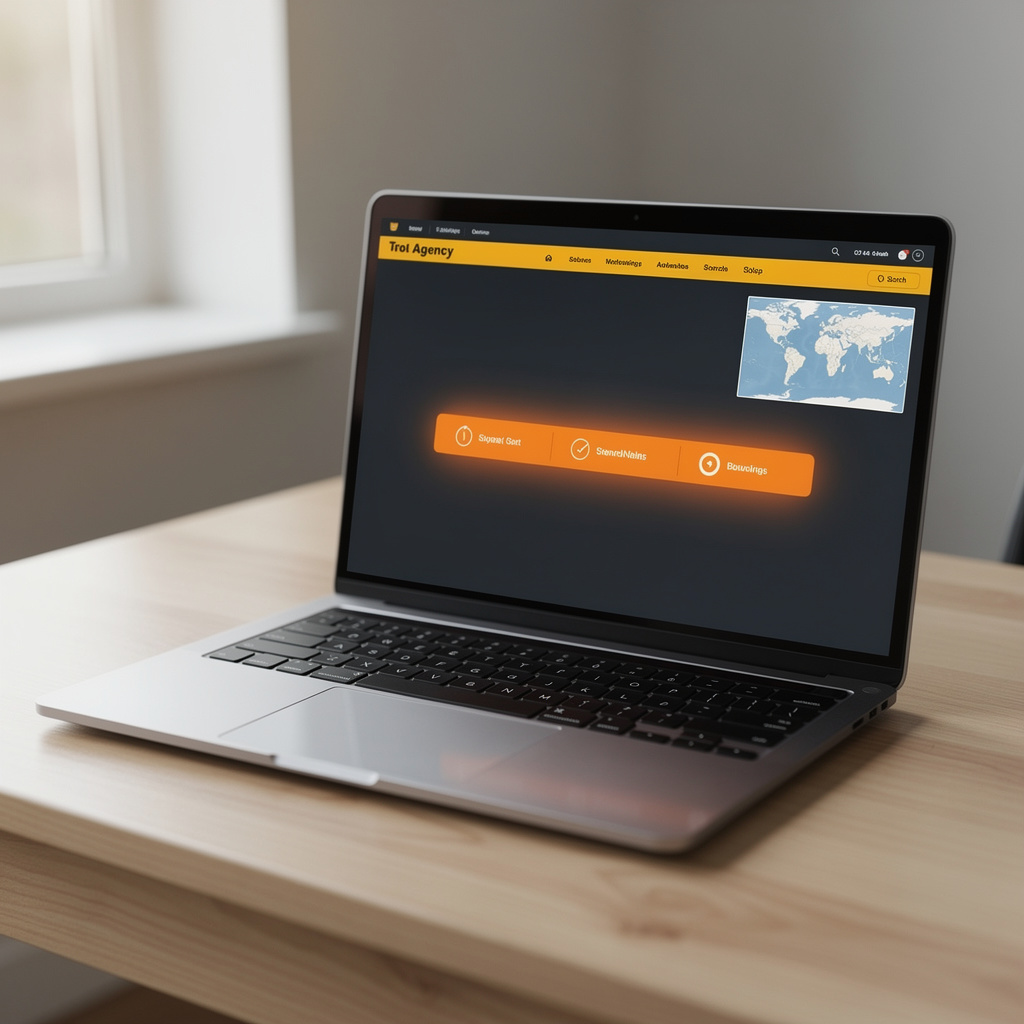
After registering, click the ‘Destination Builder’ tab on your dashboard. The interface opens with a clean map view and a sidebar for inputs.
Step 2: Choose Your Starting Point
Enter the city or airport code where your trip begins. Brewtrip automatically zooms to the location and suggests nearby breweries.
Step 3: Select a Travel Theme
Under ‘Theme’, choose ‘Beer Adventure’, ‘Festival Tour’, or ‘Culinary Brewpairing’. Each theme pre‑loads relevant attractions and filters.
Step 4: Add Destinations
Click on the map or use the search bar to add cities, neighborhoods, or specific breweries. For each addition you can:
- Set a stay duration (e.g., 2 nights).
- Attach notes: ‘Must try barrel‑aged stout’.
- Select accommodation preferences (hotel, hostel, Airbnb).
Step 5: Customize Activities
For each destination, click ‘Add Activity’. Options include:
- Guided brewery tour.
- Beer tasting class.
- Food pairing dinner.
- Local cultural sights.
Each activity pulls real‑time availability and pricing from partner providers.
Step 6: Optimize the Route
After populating destinations, press ‘Optimize’. Brewtrip’s algorithm calculates the shortest travel times, suggests public‑transport links, and flags any overlapping schedules.
Step 7: Review and Refine
Use the timeline view to see your itinerary day‑by‑day. Drag‑and‑drop activities to rearrange, or click an item to edit details.
Step 8: Add Personal Touches
Upload a cover image, write a short description, and select tags (e.g., ‘IPAs’, ‘Stouts’, ‘Festivals’). These enhance discoverability if you share the itinerary publicly.
Step 9: Publish or Export
Choose to:
- Publish: Share with the Brewtrip community, allowing others to follow or copy your route.
- Export: Download a PDF or sync with Google Calendar.
Step 10: Keep It Live
While traveling, use the mobile app to receive push notifications for upcoming activities, real‑time changes, or new brewery openings near you.
Tips and Tricks
- Use Filters: Narrow results by ‘Organic Brewery’, ‘Family‑Friendly’, or ‘Pet‑Allowed’.
- Save Templates: If you frequently travel to the same region, save the itinerary as a template for future trips.
- Collaborate: Invite friends to edit a shared itinerary – great for group brew trips.
Now you’re ready to craft unforgettable, beer‑centric adventures with Brewtrip. Happy planning!
Skriv et svar